

문서 보안
기록 바로 세우기: “디지파이 리뷰 사이트'가 잘못 알고 있는 것들
모든 Digify 리뷰가 모든 이야기를 담고 있는 것은 아닙니다. Digify의 가격, 보안, 통합 및 지원에 대한 실제 사실을 출처에서 직접 확인하세요.
Have you ever had documents that you need to send, but don’t want to give permanent access to? This commonly occurs in businesses where sending sensitive information is necessary.
Fortunately, it is possible to give temporary access to files, meaning that recipients only get a short window of time to review them. Examples of when you might like to restrict access include:
Without access restrictions, once a file is sent out, control of it is often lost forever. This information could end up in the wrong hands and risk internal security.
There are typically three ways in which you can limit access to a PDF or Word document for viewing in a web browser:
Expiration is the ability to limit access until a fixed date and time. For instance, this would be suitable for sensitive deal documents that need to be evaluated, say in a tender or RFP. A deadline is useful for negotiations, as it can impart a sense of urgency.
For the expiry to be useful, the date and time often has to be set in advance by a few days, weeks or months. It’s important to take this into account so that you’re not making extra work for yourself having to re-grant access.

Popularized by the Mission Impossible series and Snapchat in the consumer space, a self-destruct timer will count down from the time that a recipient opens the PDF or other document. There’s no dramatic explosion, the document simply disappears and is usually replaced with a message saying it has self-destructed.
In the business context, this feature can be used to impose a one-time link, where a document will be valid for the approximate time needed to view the document or file. For the self-destruct timer to be useful, the timer has to be short, in terms of minutes or hours at most. This leaves little time for anyone to copy the document, such as by taking pictures on a mobile phone.
Revocation is the act of disabling access, or “taking back” the file after it has been opened or sent. It can be useful in cases where a file is sent out by mistake, and you need to undo the mistake. Or, perhaps you need to make a crucial update and don’t want people viewing the document until that has been done.
Sometimes you may need to disable employee access to confidential information after they have left the company, or shut out external contractors when a relationship turns sour. It’s important to do what you can to ensure that sensitive business information isn’t misused, and the ability to revoke access is a valuable tool at your disposal.
A quick search on Google will turn up several free options for imposing document expiry or restricting access. There are too many options to list here, but there are some important questions you should ask of the service when evaluating them:
As a general rule, there is always some kind of payoff for a “free” service. It may be that the service presents you and your users with advertising. You might find that it’s a one-time thing and that you have to re-do document access. Some of these services only let you manage files one user at a time, while sometimes, the service has no identifiable entity behind it. Who would you turn to if something went wrong and your documents were not properly accessed?
When you are looking for a service, be mindful of how valuable your information is. If it is potentially catastrophic if that information was leaked, then honestly, we recommend using a software that is secure and reputable. Don’t risk your information being leaked!
Today, Digify offers an entire range of options in expiry, self-destruct, revocation of PDF and document access. Importantly, our service is secured by the highest levels of encryption and you have control over all documentation through our dashboard.
Let’s take a look:
You can easily set files to expire at a set date and time with our document expiry feature. Digify supports many types of files such as:
You can set expiry dates and times at a few different levels, depending on what your needs are.
When Digify was started, self-destruct was one of the first features that we offered. The press called us the “Mission Impossible” app, or “Snapchat for Business”. What we found was that the self-destruct feature was most useful for sending one-time links to sensitive information, in order to enhance the level of security for that information.
For instance, if a self-destruct period of 30 minutes was set, after someone reviews a document for that period of 30 minutes, the information self-destructs and is no longer available, even if the link is forwarded.
You can use the self-destruct option with different access settings as well. These include:
The settings you choose are at your own discretion according to your needs, but the last option is the one that ensures everyone who needs to see your document has time to do so, without being impacted by when others have opened the file.
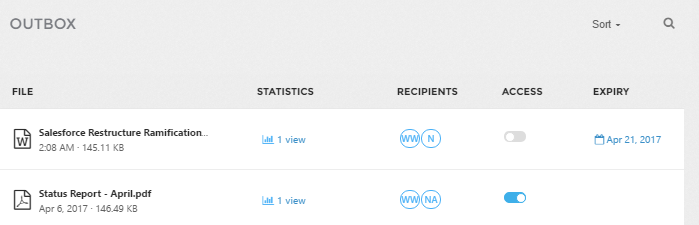
Digify offers the ability to revoke files entirely, or revoke just a particular user’s access to the file. You can revoke access at any time, and this gives you the power to take back files that have errors, that have been sent to the wrong person or that you no longer want send.
The image below shows how you can revoke access to all recipients of a file, simply by toggling off the “access” control for “sent” documents. If you were to restrict individuals, you’d simply click on “Recipients” and toggle off the “access” control next to the individual name.
Digify is one of the most affordable solutions for Digital Rights Management, and a reliable, secure option. Try it for yourself with a seven day free trial, available here.


작성자
모든 Digify 리뷰가 모든 이야기를 담고 있는 것은 아닙니다. Digify의 가격, 보안, 통합 및 지원에 대한 실제 사실을 출처에서 직접 확인하세요.


Digify 문서 보안 및 Splashtop 원격 액세스와 같은 원격 학습 리소스는 오늘날의 온라인 교육 문제를 해결하는 데 도움이 될 수 있습니다.